
English (UK)
Setup guide
Connect Claude to RIRLift
This guide connects Claude to your RIRLift training. You'll add RIRLift as a custom connector on claude.ai, then pair it with your phone using a one-time code. It's a one-time setup and takes about a minute.
You do this from a computer — custom connectors can't be added in the Claude mobile app. Keep your phone nearby: it shows the pairing code.
Before you start
- You need RIRLift Pro. In the app, open Ask your AI → Connect your AI.
- Tap Connect your AI in the app to get your pairing code and connector address. Leave that screen open — it waits for the connection and flips to "Connected" on its own.
Add the connector on claude.ai
On your computer, open claude.ai in a browser and sign in. (Claude's custom connectors work on Free, Pro, and Max plans.)
Open Settings, then choose Connectors (under Customize).
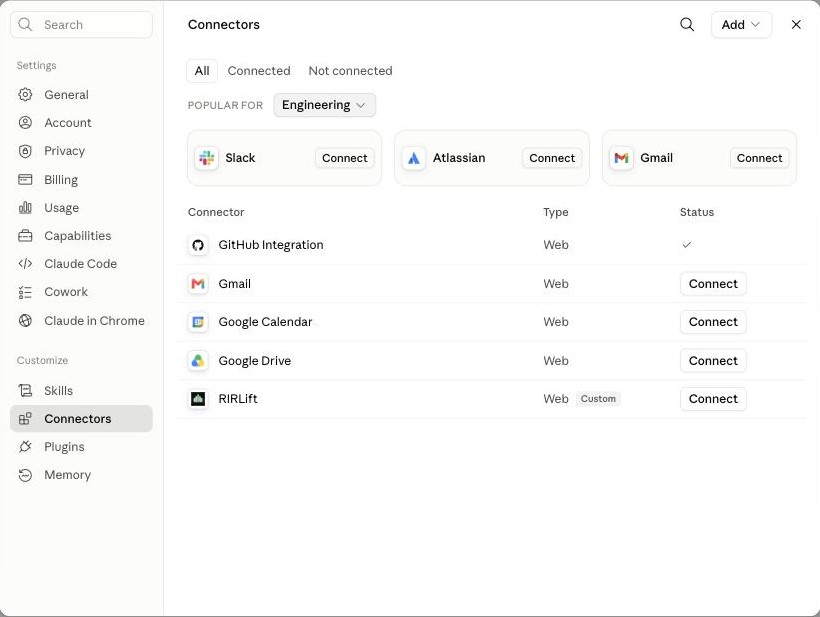
In claude.ai's settings, open Connectors under Customize. Click Add in the top-right corner, then Add custom connector.
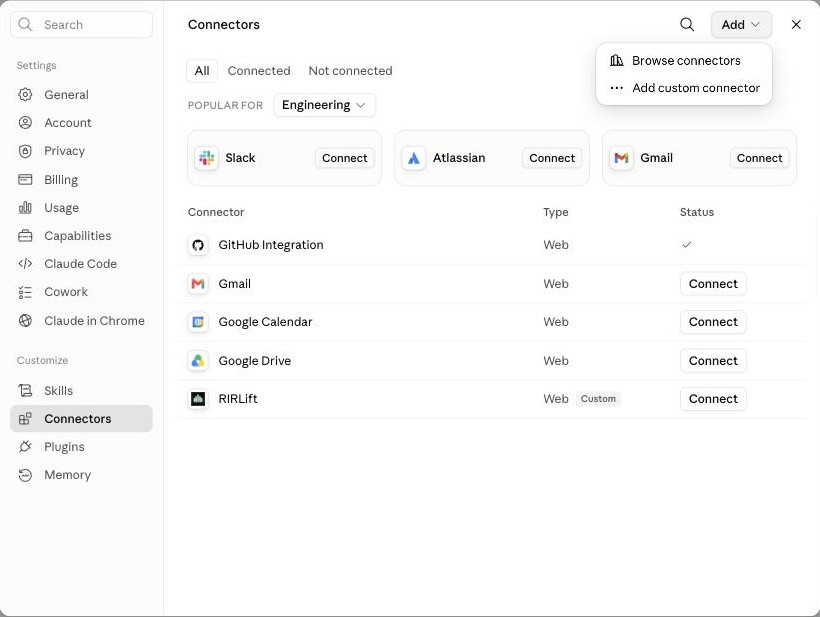
Click Add, then Add custom connector. Give it a name (like RIRLift) and paste the connector address from the app:
https://mcp.rirlift.com/mcp. Then click Add. You can leave "Advanced settings" untouched — RIRLift needs no client ID or secret.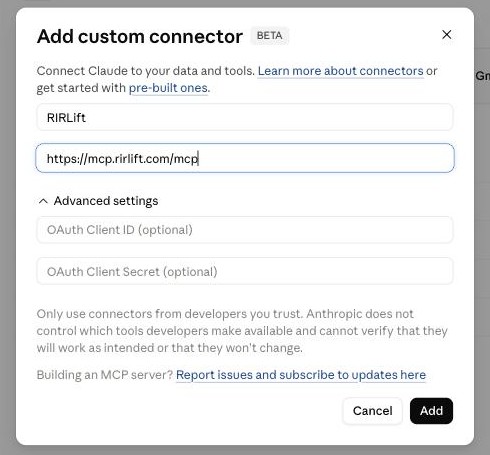
Enter the name and the RIRLift connector address, then click Add.
Pair it with your phone
Claude opens a RIRLift page and asks you to authorise the connection. When it asks for a code, enter the 8-digit pairing code your app is showing, then confirm.
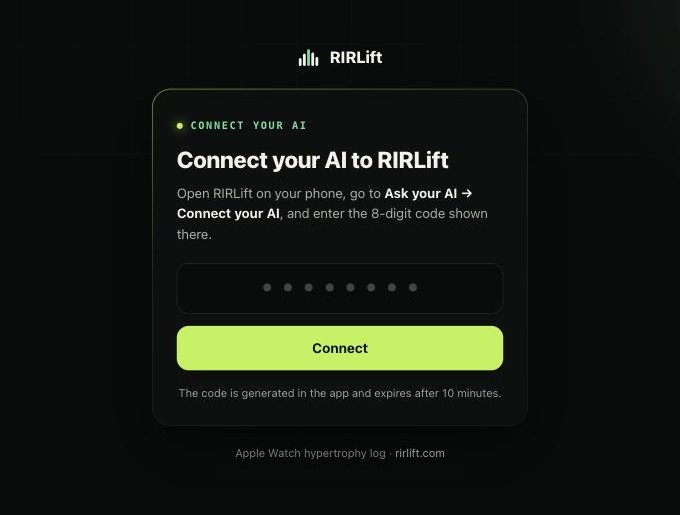
Enter the 8-digit pairing code from the RIRLift app. That's it. Your phone flips to Connected on its own, and Claude can now read your training.
Ask Claude about your training
In a chat, enable the RIRLift connector (use the + near the message box, choose Connectors, and turn RIRLift on), then ask something like:
Look at my RIRLift training and tell me what to change.
If you ask Claude to build you a programme, it comes back into RIRLift under Ask your AI for you to review and import — nothing changes in your app until you approve it.
If something goes wrong
- The code expired. Codes are short-lived. Tap Get a new code in the app and enter the fresh one.
- Claude can't reach the connector. Double-check the address is exactly
https://mcp.rirlift.com/mcp, with no trailing spaces. - You want to stop sharing. Open Connect your AI in the app and tap Disconnect. Claude loses access and RIRLift deletes the data it uploaded.
Using ChatGPT instead? Connect ChatGPT to RIRLift.